
In the past, if we needed to erase or delete partitions from a hard drive, we’d pull out our handy Windows 98SE boot floppy disk. Later, when floppy disks went away, we’d use a bootable CD version of the Win98SE floppy. An example of why we would need to do that is if we had installed an operating system for testing but needed to send the system out to the customer with a clean hard drive, ready for them to install their own OS. The Windows 98SE boot disc was a great tool for doing this. It would even let you delete NTFS partitions using the FDISK utility. I know this all sounds ridiculously old school, but it worked and was usually more straightforward and quicker than other ways you could go about this
Then we began to notice that some of the newer motherboards wouldn’t allow you to boot from the Windows 98SE boot disc; it would basically just hang during the boot. We started using another way to delete partitions that was even easier and quicker: using Windows installation media and the DiskPart utility.
Using DiskPart to Clean a Drive
Boot the computer from your Windows installation USB drive or DVD. If necessary, select the installation media from the computer’s boot menu. Once you get to the Windows installation screen shown below, press Shift + F10 on your keyboard.
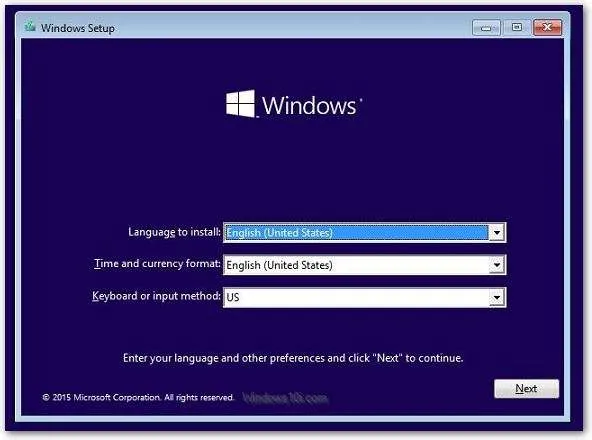
This will open a Command Prompt window that you can use to perform numerous tasks. To clean your hard drive, type these commands:
diskpart <enter>
list disk <enter>
select disk 0 <enter> (0 if the drive you want to clean is Disk 0)
clean <enter>
exit <enter>
exit <enter> (this will take you back to the Windows installation screen shown above.
That’s it. Your partitions have been erased. At that point, you can continue with the Windows installation.
Ram PC Systems builds custom computer systems for both current and legacy applications. See our complete selection of computer systems.